Generate
Create images with AI
Power BI Desktop Analytics Dashboard Screenshot
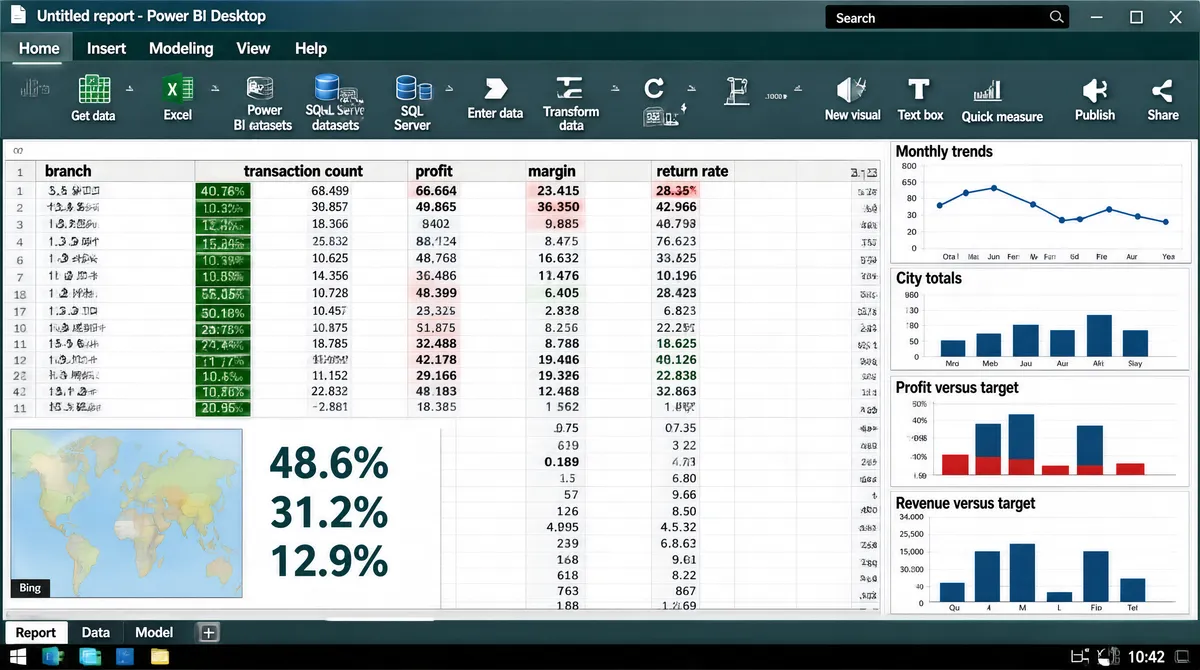
[Format] Landscape 16:9 gig cover, full desktop-application screenshot including the operating-system chrome. Dense, realistic software look. No watermark, no personal names. [Layout] A complete application window fills the frame: a title bar across the very top with a document name, a search field, an account chip and three window buttons at the right; beneath it a ribbon of tab labels over two rows of small icon-plus-caption groups in three tonal bands; then the working area, split into a wide data grid on the left two-thirds with a frozen header row of column names and many rows of small-print figures, and a right-hand column of narrow chart panels with a thin heading above each. At the very bottom a dark system taskbar runs edge to edge with a row of small square app icons at its left and a clock plus status glyphs at its right, and a page-tab strip sits just above it with several tab labels and a plus button. [Subject] None — interface only. [Headline] The title bar carries a document name (keep it as neutral placeholder wording) followed by the application descriptor "Power BI Desktop". The ribbon tab labels are short single words (Home, Insert, Modeling, View, Help) above command buttons labelled Get data, Excel, Power BI datasets, SQL Server, Enter data, Transform data, Refresh, New visual, Text box, Quick measure, Publish and Share. The grid's header row lists short column names such as branch, transaction count, profit, margin and return rate. The KPI headline block contains three large percentage figures stacked vertically. Small panel titles above the right-hand charts describe monthly trends, city totals, profit-versus-target and revenue-versus-target, and the small map panel at the bottom-left carries a "Bing" attribution line. [Badges] The ribbon icons are the tool's own glyphs, including the green Microsoft Excel mark (a white "X" over a grid), the Power BI datasets icon and the blue SQL Server cylinder. The Windows taskbar at the bottom carries a row of small square app icons at its left plus a clock and status glyphs; draw those as generic dark tiles. [Mood] Deep grey-teal ribbon and title chrome over a white grid, with dark-green and red conditional formatting in the cells. Serious, in-the-trenches tooling; the dense grid plus the OS taskbar make it read unmistakably as real software at thumbnail size.
More Images